Custom Actions
Learn how to extend Governor Executor with your own script-based actions.
Quick Reference
- Write your custom executor script
- Upload your executor script plus additional .psm1 module files to Governor API
- Create or customize Schemas to bind your custom actions
Write an executor script
Important here:
- Controller file syntax
- Init Block
- Shutdown Block
- Arbitrary Actions
Put a minimal example to illustrate the concept...
Controller Script Syntax
Controller "<Unique.Controller.Id>" {
    Init {
        <# initialization block. will run before the action. #>
    }
    Shutdown {
        <# shutdown block. will run after the action, no matter if the action failed or not. #>
    }
    Action "ArbitraryAction1" {
        param($Order)
        <# script to perform **Unique.Controller.Id/ArbitraryAction1** #>
    }
    Action "ArbitraryAction2" {
        param($Order)
        <# script to perform **Unique.Controller.Id/ArbitraryAction2** #>
    }
    Action "ArbitraryAction..." { ... }
}
Additional .psm1 Modules
To keep your controller file simpler to read, you can upload additional .psm1 files together with your controller script.
In your controller script file, you can then import or load the module using the GOV_ADDITIONAL_FILES environment variable.
Controller "My.Custom.AzureADGroup" {
    Init {
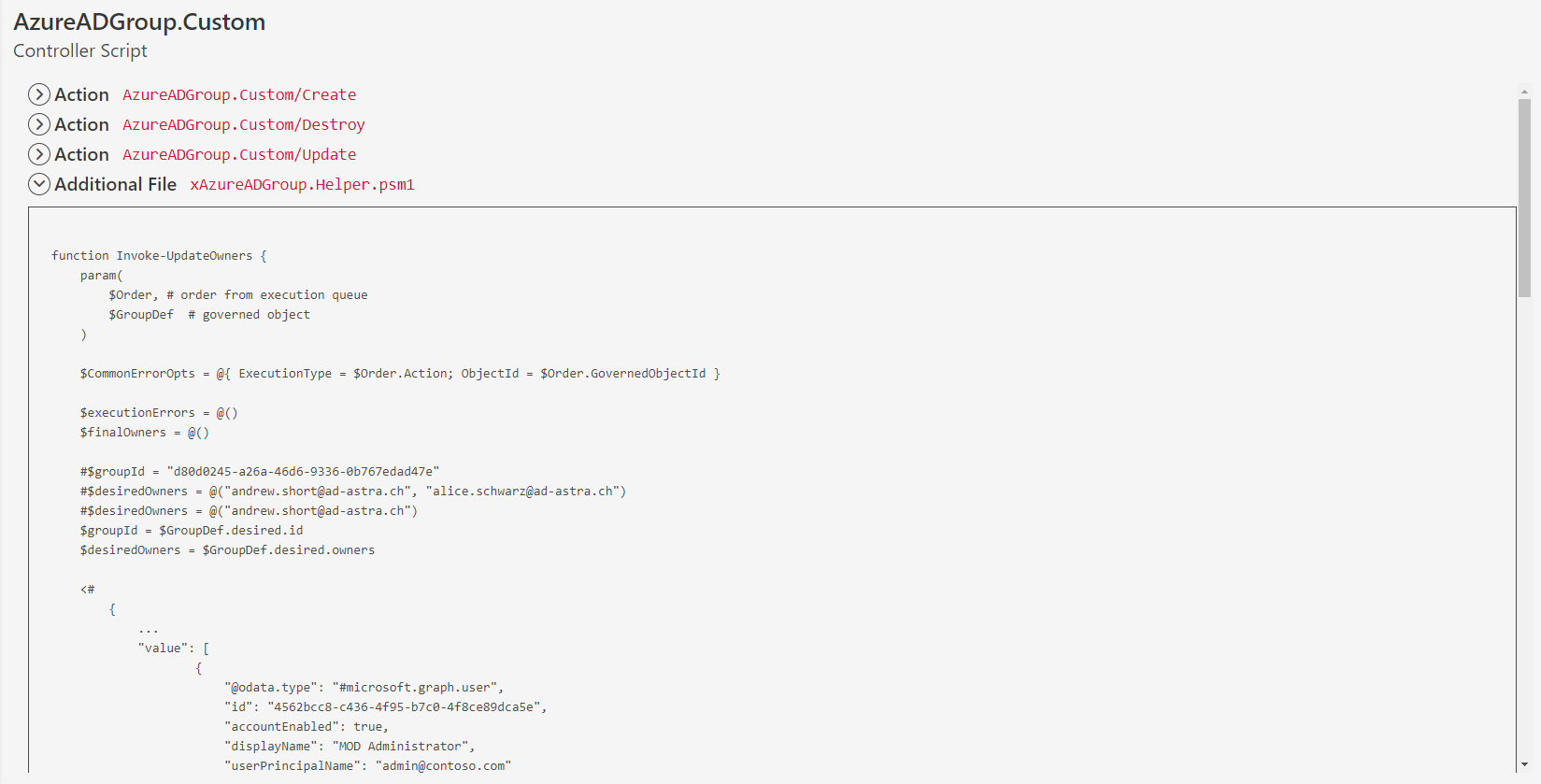
        Import-Module "${env:GOV_ADDITIONAL_FILES}/xAzureADGroup.Helper.psm1"
        ...
    }
    ...
}
Additional files can be referenced only by the parent controller script. It is not possible to distribute as .psm1 file in one controller script and then reference it from another controller script.
Compile and upload
To make your custom executor script available in Governor you need to upload the script.
If your custom controller script comes with additional text files or .psm1 Module files, you need to upload them via "additionalFiles" together with your controller script.

To check the script syntax and simulate the outcome of an upload, you can upload your controller script to POST /ControllerScripts/compile.
To upload and distribute your script, use the POST /ControllerScripts/upload endpoint.
List Controller Scripts
To check your controller script, open the UI and navigate to Administration > Controller Scripts.
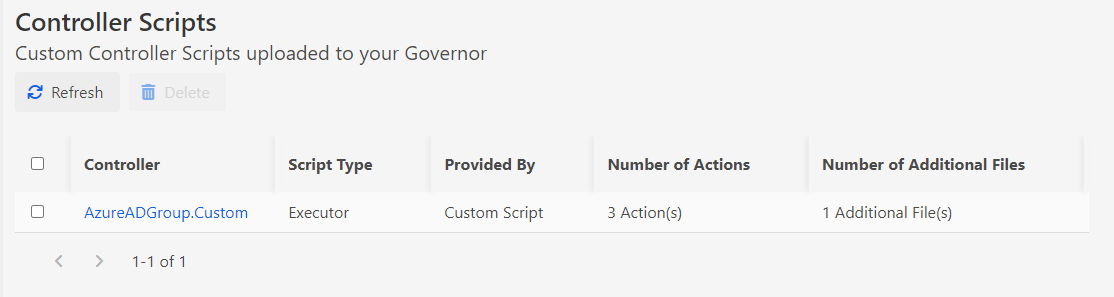
The detail page will show you the compiled actions and helper files and allows you to expand and browse the scripts.